
Table of Contents
- What Is a POS Monitor? Understanding the Basics
- POS Touch Screen Monitor Advantages
- POS Touch Screen Monitor Disadvantages
- When Non-Touch POS Monitors Make Sense
- Product Spotlight: Telpo C9 vs C11
- Side-by-Side Comparison Table
- POS Monitor Buying Guide: Size, Mount & Stand Options
- Is a Touch Screen Monitor for POS Right for You?
- Frequently Asked Questions
- Conclusion
Introduction
Are you upgrading your point-of-sale system and stuck deciding between a POS touch screen monitor and a traditional non-touch display? You’re not alone. With POS monitor prices ranging from $200 to over $1,500 depending on features and brand, making the wrong choice can cost you thousands in lost productivity—or unnecessary hardware expenses.
In this comprehensive guide, we break down the real advantages and disadvantages of both options based on 8+ years of deploying retail and hospitality POS hardware systems across 120+ countries. Whether you’re running a quick-service restaurant, a busy retail store, or a hybrid operation, by the end you’ll know exactly which POS monitor setup fits your specific needs and budget.
What Is a POS Monitor? Understanding the Basics
Before diving into comparisons, let’s clarify what we mean by “POS monitor” and the key variations available.
A POS monitor (Point of Sale monitor) is the primary display interface where transactions are processed, inventory is managed, and customer interactions happen. Unlike standard computer monitors, POS monitors are purpose-built for commercial environments with features like:
-
VESA mounting compatibility for flexible POS monitor mount and POS monitor stand configurations
-
Multiple POS monitor sizes (typically 10″ to 21.5″) to fit different counter spaces
-
Durability ratings for high-use, multi-shift operations
-
Integrated peripherals like card readers, customer displays, or receipt printers
Touch vs Non-Touch: The Core Difference
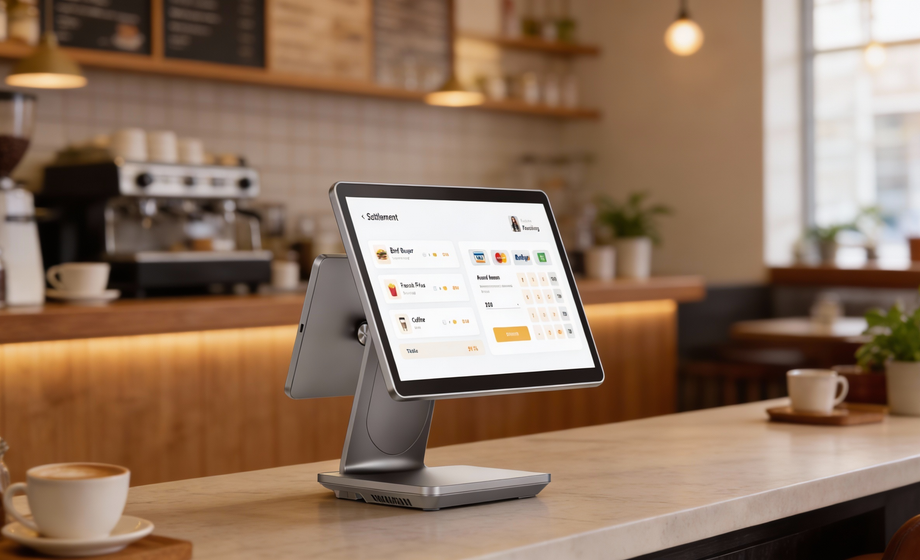
A touch screen monitor for POS eliminates the need for a separate keyboard and mouse. Staff interact directly with the screen using finger taps, swipes, and gestures—similar to using a smartphone or tablet. This is the standard in modern quick-service restaurants, retail boutiques, and coffee shops.
Non-touch POS monitors rely on traditional input methods: external keyboards, mice, or barcode scanners. While this may sound outdated, they remain popular in back-office operations, warehouses, and specific retail environments where staff perform extensive data entry.
POS Touch Screen Monitor Advantages
Touch-enabled displays have become the dominant choice in modern retail and hospitality. Here’s why:
Faster Checkout Experience
In high-volume environments, every second counts. A well-designed POS touch screen monitor can reduce transaction times by 15-30% compared to keyboard-based systems.
- Real-world scenario: A busy coffee shop processing 300+ transactions per morning rush. With a touch interface, baristas tap drink modifiers (extra shot, oat milk, no foam) in 2-3 taps versus navigating through menus with arrow keys. Over a day, this efficiency compounds into significantly shorter lines and happier customers.
- Modern capacitive touchscreens—like those found in the Telpo K1 KDS—support multi-touch gestures, allowing experienced staff to perform complex actions (split bills, apply discounts, switch between order screens) with intuitive finger movements that would require dozens of keystrokes on traditional systems.
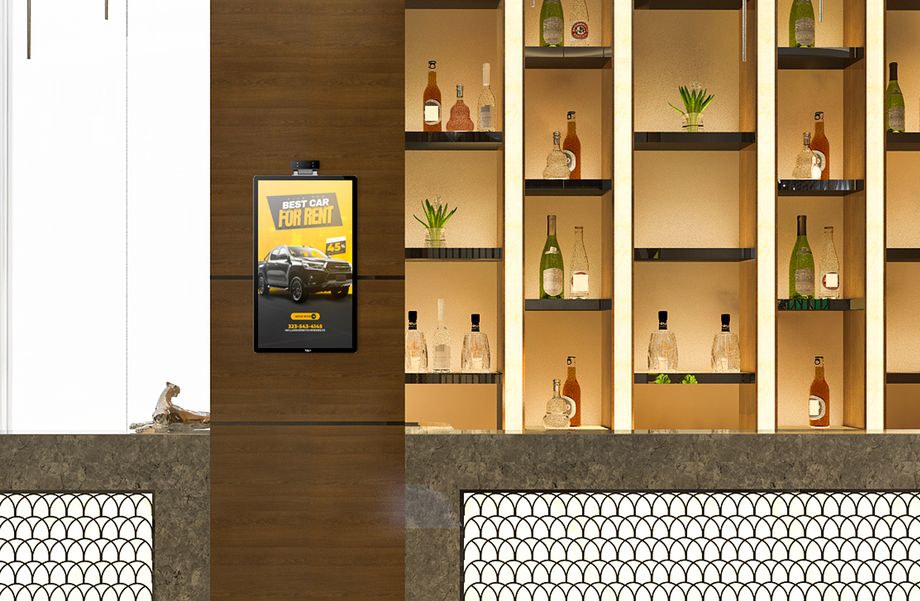
21.5″ POS monitor K1 in hotel for renting a car
Space-Saving All-in-One Design
Counter space is premium real estate in most retail and food service operations. A POS touch screen monitor combines display and input into one compact unit, eliminating the need for:
-
External keyboards (and the space they occupy)
-
Mouse pads and tracking surfaces
-
Additional cable management
POS monitor sizes for touch systems typically range from compact 10.1″ displays for food trucks and kiosks up to 21.5″ full-size units for main checkout counters. The integrated design means you can mount these directly on the counter using a POS monitor stand or wall-mount with a POS monitor mount to free up workspace entirely.
Le Telpo C9 desktop POS exemplifies this space efficiency—its 15.6″ touchscreen integrates the computer, display, and payment modules in a single slim profile that occupies minimal counter space while delivering full functionality.
Improved Staff Efficiency
Touch interfaces reduce training time for new employees. Most people are already comfortable with smartphone-style interactions, making the transition to a POS monitor touch screen intuitive.
Key efficiency benefits:
-
Visual workflows: Color-coded buttons and icon-based navigation reduce cognitive load
-
Fewer input errors: Direct selection eliminates typos from keyboard entry
-
Multi-tasking: Split-screen capabilities on larger displays let staff view orders while processing payments
For businesses with high staff turnover (common in hospitality and retail), the reduced training burden translates to real cost savings. A new employee can be processing transactions independently within hours rather than days.
POS Touch Screen Monitor Disadvantages
Despite the advantages, touch screens aren’t the universal solution. Here are the genuine limitations to consider:
Higher Initial Investment
The most immediate drawback is POS monitor price. Touch-enabled displays command a 30-50% premium over comparable non-touch models.
Typical POS monitor price ranges (2026):
-
Entry-level non-touch 15″ monitor: $130–$300
-
Entry-level POS touch screen monitor 15″: $350–$650
-
Mid-range commercial touch display: $600–$1000
-
High-end ruggedized units: $1,000–$1,800+
For multi-location rollouts, this price difference multiplies quickly. A 10-location deployment might see a $3,000–$5,000 cost increase by choosing touch over non-touch across all stations.
However, factor in the eliminated cost of keyboards, mice, and reduced training time—the total cost of ownership often narrows within the first year.
*Prices are indicative and subject to change based on market conditions. Please contact Sales for formal quotation.
Durability and Maintenance Concerns
Touchscreens face unique durability challenges in commercial environments:
- Screen wear: Constant finger contact causes oils, dirt, and eventually micro-scratches. While modern Gorilla Glass and similar treatments resist damage, budget touchscreens may degrade visibly within 2-3 years of heavy use.
- Calibration drift: Capacitive screens can lose calibration over time, resulting in “missed touches” where staff tap one area but the system registers another. Recalibration is usually simple but requires management attention.
- Environmental sensitivity: Extreme temperatures, excessive moisture (think steamy kitchen environments), or direct sunlight can impact touch sensitivity. Not all touch screen monitors for POS are built equal—verify IP ratings and operating temperature ranges for your specific environment.
Staff Training Requirements
While touch interfaces are generally intuitive, they’re not foolproof. Some challenges include:
-
“Gorilla arm” fatigue: Staff working long shifts on vertical touchscreens may experience arm fatigue from extended reaching
-
Precision issues: Workers with long fingernails or gloves may struggle with precise touch inputs
-
Workflow changes: Switching from a familiar keyboard-based system to touch requires adjustment time that can temporarily slow operations
For businesses with long-tenured staff deeply accustomed to existing systems, the transition friction shouldn’t be underestimated.
When Non-Touch POS Monitors Make Sense
Non-touch displays still have legitimate use cases. Consider them when:
- Heavy data entry dominates: If your operation involves extensive typing (detailed inventory management, lengthy customer notes, complex order customization), an external keyboard remains more efficient than on-screen tapping.
- Back-office operations: Manager workstations, accounting terminals, and reporting stations rarely need touch interaction. A standard POS monitor with keyboard and mouse provides better ergonomics for extended computer work.
- Budget constraints: For startups or temporary pop-up locations, the lower POS monitor price of non-touch units may be the deciding factor.
- Specific mounting requirements: Some specialized POS monitor mount configurations (ceiling drops, pole mounts in tight spaces) work better with non-interactive displays showing customer-facing information.
Product Spotlight: Telpo C9 vs K1
To make this comparison concrete, let’s examine two popular models from Telpo, a manufacturer specializing in commercial POS touch screen monitors.
Telpo C9: The Heavy-Duty All-Rounder
-
Écran : 15.6″ capacitive touchscreen
-
Resolution: 1920×1080 Full HD
-
Processor: Octa-core
-
Connectivity: Multiple USB, Ethernet, WiFi, Bluetooth
-
POS monitor stand: Adjustable base included; VESA mount compatible
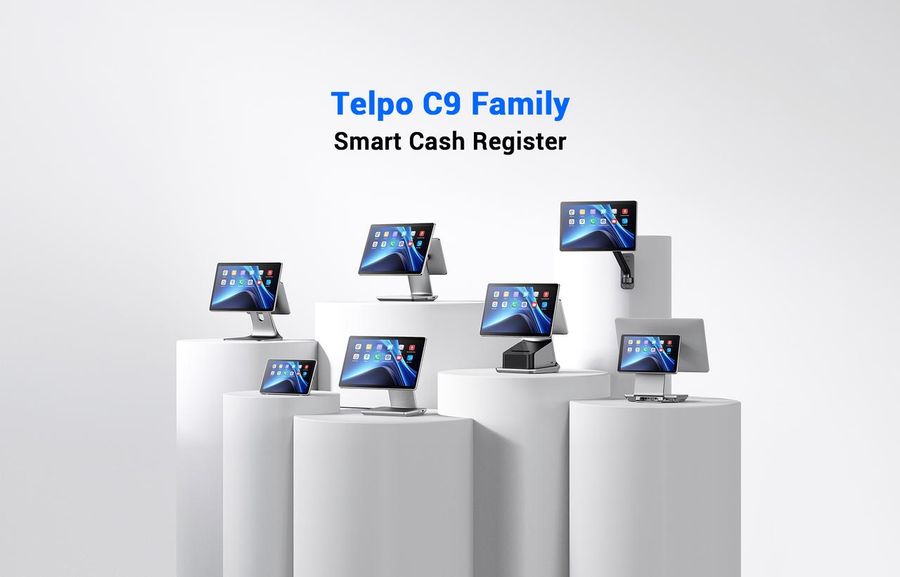
The C9 hits a sweet spot for small-to-medium retail operations. Its compact footprint fits cramped checkout counters while delivering responsive touch performance. At a mid-range POS monitor price point, it offers professional-grade durability without enterprise-level pricing.
Best for: Boutiques, cafes, salons, and small grocery stores prioritizing counter space and reliability.
Telpo C12: The Compact Performer
-
Écran : 10.1″ capacitive touchscreen options
-
Resolution: 1280×1080 Full HD with anti-glare coating
-
Processor: Octa-core for demanding applications
-
Expansion: Multiple payment module integration options

Telpo C12 POS touch monitor
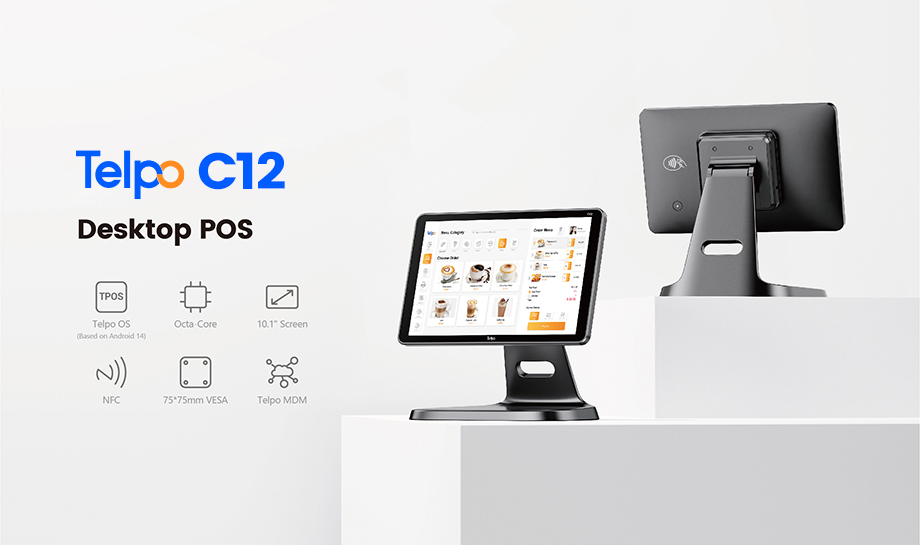
The C12 is built for high-volume, demanding environments. Its ruggedized construction withstands the abuse of busy quick-service restaurants and large retail chains. The larger POS monitor size option (21.5″) suits customer-facing self-service kiosks or main checkout terminals.
Best for: High-traffic restaurants, chain retail, self-service kiosks, and 24-hour operations.
Both models support standard POS monitor mount configurations, allowing wall-mount, pole-mount, or under-counter installation based on your space requirements.
Side-by-Side Comparison Table
| Fonctionnalité | Touch POS Monitor | Non-Touch POS Monitor |
|---|---|---|
| Initial Cost | $350–$1,800 | $180–$600 |
| Counter Space | Minimal (all-in-one) | Requires keyboard/mouse space |
| Transaction Speed | Fast (tap/swipe interface) | Moderate (keyboard navigation) |
| Training Time | 1-2 hours | 4-8 hours |
| Durabilité | Varies by model (check IP ratings) | Generally robust, fewer failure points |
| Input Precision | Good for selection, poor for text entry | Excellent for data entry |
| Customer Experience | Modern, intuitive | Functional but dated |
| Best Use Case | Retail, hospitality, QSR | Back office, heavy data entry, budget setups |
*Prices are indicative and subject to change based on market conditions. Please contact Sales for formal quotation.
POS Monitor Buying Guide: Size, Mount & Stand Options
Beyond the touch vs non-touch decision, several practical factors affect your setup:
Choosing the Right POS Monitor Size
10″–12″ displays: Ideal for compact kiosks, food trucks, or secondary order stations where space is extremely limited.
15″–15.6″ displays: The industry standard for main checkout terminals. Balances screen real estate with counter space requirements. Both Telpo C9 and C11 use this POS monitor size as their primary offering.
17″–22″ displays: Best for customer-facing displays, self-service kiosks, or back-office workstations where screen space improves productivity.
POS Monitor Mount and Stand Considerations
- Countertop stands: The default option—stable base sitting on your counter. Look for adjustable tilt angles (0–90°) to accommodate different staff heights and reduce glare.
- VESA wall mounts: Free up counter space entirely by mounting the POS monitor on a wall or pole. Essential for tight service areas or clean aesthetic requirements.
- Pole mounts: Popular in quick-service restaurants—mounts the display on a vertical pole rising from the counter, with the receipt printer and payment terminal integrated below.
- Swivel mounts: Allow the screen to rotate toward customers for signature capture or PIN entry, then back to staff for order entry.
Lors de l'évaluation POS monitor price, factor in mount costs—quality VESA arms run $50–$150 additional.
Is a Touch Screen Monitor for POS Right for You?
Use this decision framework:
Choose a POS touch screen monitor if:
-
You operate a retail store, restaurant, or café with customer-facing transactions
-
Counter space is limited
-
You prioritize fast checkout speed and short staff training
-
Your budget allows for the 30-50% price premium
-
You’re building a modern, tech-forward brand image
Stick with non-touch if:
-
Your operation is primarily back-office (accounting, inventory management)
-
Staff perform extensive data entry requiring keyboards
-
Budget constraints are tight and functionality matters more than aesthetics
-
You have existing keyboard-based workflows that work well
Frequently Asked Questions
Q1: What is the average POS monitor price in 2026?
A : Entry-level non-touch POS monitors start around $180–$300. Quality POS touch screen monitors typically range from $400–$800 for mid-range commercial units, with ruggedized or large-format displays reaching $1,000–$1,800. Factor in an additional $50–$150 for quality POS monitor stand ou POS monitor mount hardware.
Q2: What POS monitor size is best for a small retail store?
A : For most small retail operations, a 15″ or 15.6″ POS monitor offers the ideal balance of screen space and counter efficiency. The Telpo C9 (15.6″) is a popular choice for this segment. If counter space is extremely tight, consider a 10″–12″ compact model.
Q3: Can I use any monitor as a POS touch screen monitor?
A : Not effectively. Consumer touchscreens lack the durability, VESA mounting options, and commercial-grade connectivity required for POS environments. Purpose-built POS touch screen monitors like the Telpo C11 include features like spill-resistant coatings, all-day brightness settings, and integrated payment peripheral support that consumer displays cannot match.
Q4: How difficult is it to install a POS monitor mount?
A : Most POS monitor mount installations are straightforward DIY projects requiring basic tools. VESA wall mounts typically need two wall anchors and take 15–30 minutes. Pole mounts may require drilling through your counter. If you’re not comfortable with installation, professional mounting services typically charge $100–$200 per station.
Q5: Do touch screen monitors for POS work with gloves?
A : Standard capacitive touchscreens (like smartphones) do not work with most gloves. However, many commercial POS touch screen monitors—including the Telpo C11—support glove-friendly touch technology. If your staff wears gloves (kitchens, warehouses, healthcare), verify this specification before purchasing.
Conclusion
The choice between a POS touch screen monitor and a non-touch display ultimately depends on your operational needs, budget, and environment. Touch screens deliver speed, space efficiency, and modern customer experiences—but at a higher POS monitor price point and with specific durability considerations.
For most retail and hospitality businesses, the benefits of a quality touch screen monitor for POS—faster transactions, reduced training time, and compact footprint—justify the investment. Models like the Telpo C9 et Telpo C11 demonstrate how modern commercial touchscreens address traditional durability concerns while delivering the interface experience customers and staff expect.
If you’re primarily doing back-office work or operating on a tight budget, non-touch POS monitors remain a viable, cost-effective option.
Ready to upgrade your POS system? Compare the full specifications of the Telpo C9 and C11 to find the right fit for your counter space, transaction volume, and budget requirements.
Last updated: March 19, 2026 | Telpo C9 vs C11 Detailed Specs